Why a Network Access Point Changes Everything About Your Wi-Fi
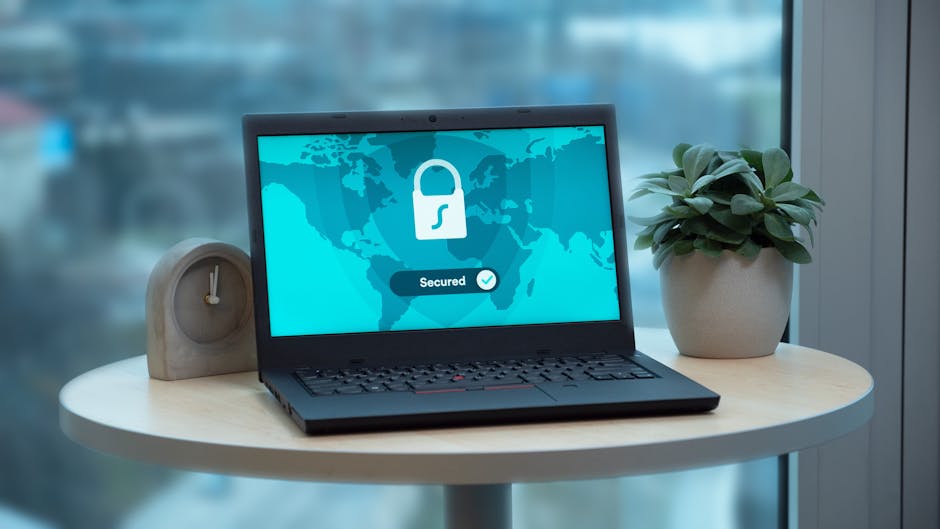
A network access point is a networking device that connects wireless devices — laptops, phones, tablets, IoT sensors — to a wired local area network (LAN). Think of it as a bridge between the wire in the wall and the Wi-Fi in the air.
Quick answer: What is a network access point?
- It receives a wired Ethernet signal from your router or switch
- It broadcasts that signal as Wi-Fi to nearby devices
- It handles authentication, bandwidth management, and traffic forwarding
- It can be deployed in multiple modes: root, repeater, bridge, or mesh
- Consumer models support 10–50 devices; enterprise models handle 100–500+
Most people assume buying another router solves their Wi-Fi problems. It usually doesn’t. Routers are built to manage networks — assigning IP addresses, directing traffic, connecting you to the internet. Access points are built to extend them, cleanly and efficiently, without creating the conflicts that come from stacking multiple routers together.
If your home office or business has dead zones, slow speeds in certain rooms, or devices dropping off the network, the issue probably isn’t your internet plan. It’s how your wireless coverage is structured.
I’m Jay Baruffa, founder of Tech Dynamix, and with over 20 years of hands-on experience designing and supporting complex network infrastructure — including network access point deployments across Northeast Ohio businesses — I’ve seen how the right hardware setup transforms reliability. In this guide, I’ll walk you through exactly how access points work and why they’re the smarter choice for growing networks.
Understanding the Network Access Point: Infrastructure vs. Local Connectivity
To truly understand what a network access point (NAP) is, we have to look at it through two different lenses: the massive infrastructure that keeps the world connected and the local hardware sitting on your desk or ceiling.
Historically, a Network Access Point referred to a major public exchange facility. These were the physical locations where Internet Service Providers (ISPs) would meet to “peer” or exchange traffic directly. This peering is what allows data to travel from an AT&T customer in Mentor, Ohio, to a Spectrum user in Willoughby without having to travel across the entire country and back. Modern versions of these are often called Internet Exchange Points (IXPs) and are housed in massive data centers.
However, in our day-to-day lives at home or in the office, when we talk about a network access point, we are usually referring to a Wireless Access Point (WAP). While the scale is different, the core mission is the same: providing a gateway for data to move from one medium to another. In the data center, it’s moving traffic between ISP backbones; in your office, it’s moving data from the Ethernet cables in your walls to the Wi-Fi antennas in your laptop.

How a Wireless Access Point Transforms Your Network Performance
A network access point acts as a sophisticated bridge. It takes the high-speed data coming through your wired network (the “backhaul”) and converts it into radio frequencies that your devices can understand.
According to Cisco, these devices are essential because they eliminate the need for cumbersome cables while maintaining high performance. Unlike a simple hub, a modern access point is “smart.” It manages traffic forwarding, handles device authentication, and ensures that the bandwidth is distributed efficiently.
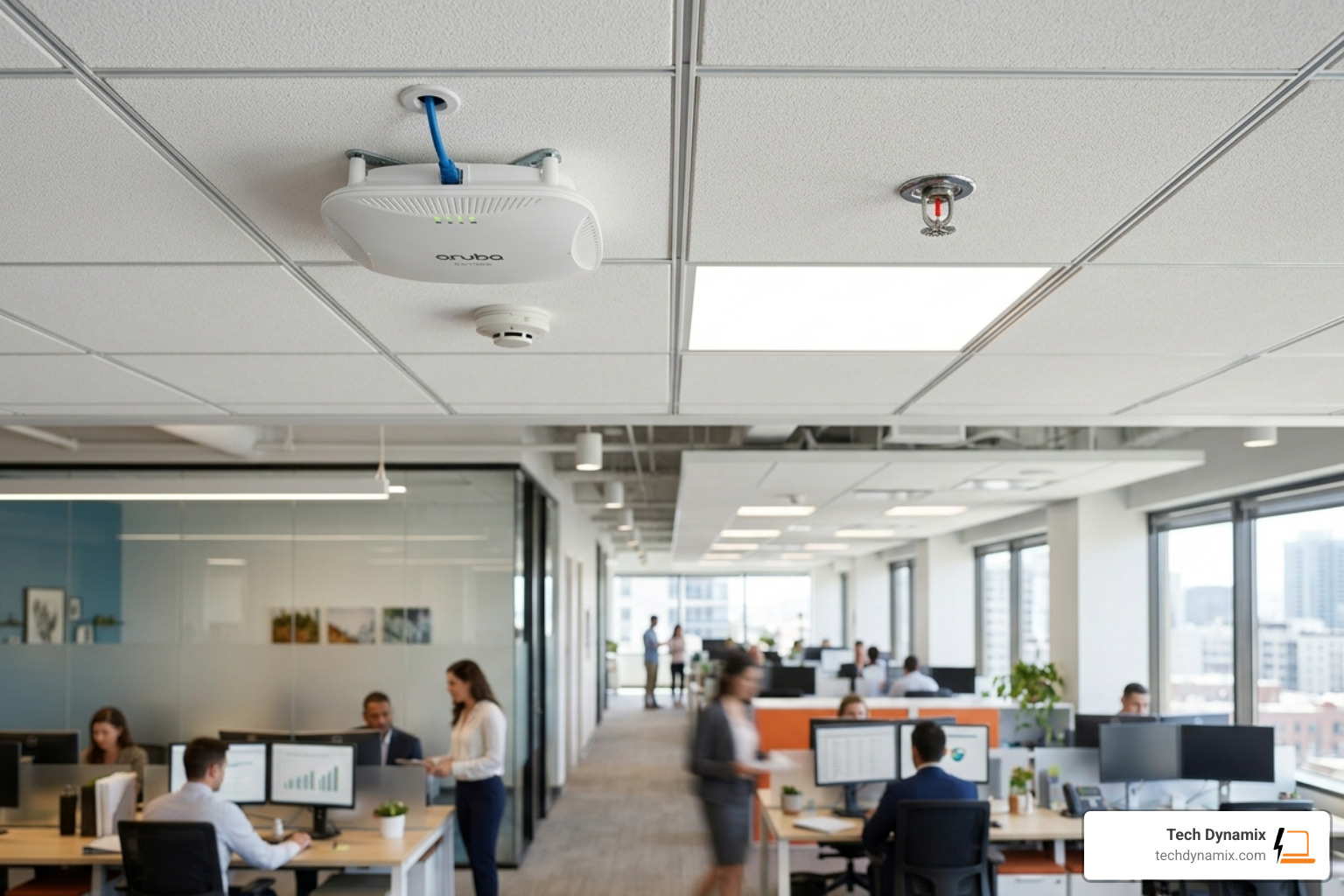
At Tech Dynamix, we often integrate these into our network connectivity services because they offer a level of stability that standard consumer routers simply cannot match. One of the biggest advantages is Power over Ethernet (PoE). This allows the access point to receive both power and data through a single Ethernet cable. This is why you often see them mounted high on walls or ceilings in professional environments in places like Painesville or Chardon—they don’t need to be near a power outlet to work.
Key Configurations for a Network Access Point
One of the reasons we love access points is their versatility. They aren’t one-trick ponies; they can be configured in several ways depending on your specific needs:
- Root Mode: This is the standard setup. The AP is connected directly to a wired network and provides Wi-Fi to wireless clients.
- Repeater Mode: The AP picks up a Wi-Fi signal from another AP and rebroadcasts it. This is great for getting around physical obstacles, though it can reduce overall bandwidth.
- Bridge Mode: This connects two or more wired segments of a network wirelessly. For example, if you have two buildings in a complex in Eastlake that you can’t run a wire between, a bridge can link them.
- Workgroup Bridge: This allows a device that only has a wired Ethernet port (like an older printer or a specialized piece of medical equipment) to join a Wi-Fi network.
- Mesh Networking: Multiple APs talk to each other to create a single, seamless blanket of Wi-Fi across a large area, allowing you to walk from one end of a building to the other without losing your connection.
Scaling Capacity with a Modern Network Access Point
Capacity is where the network access point really shines compared to a standard home router. Most people don’t realize that Wi-Fi is a shared medium.
Statistics show that for high-bandwidth applications, a single IEEE 802.11 AP should ideally handle only 10–25 clients to maintain peak performance. If you have a high-density environment—like a classroom in Madison or a busy retail shop in Mentor—you might need even more APs to keep the density closer to 10-15 users per AP.
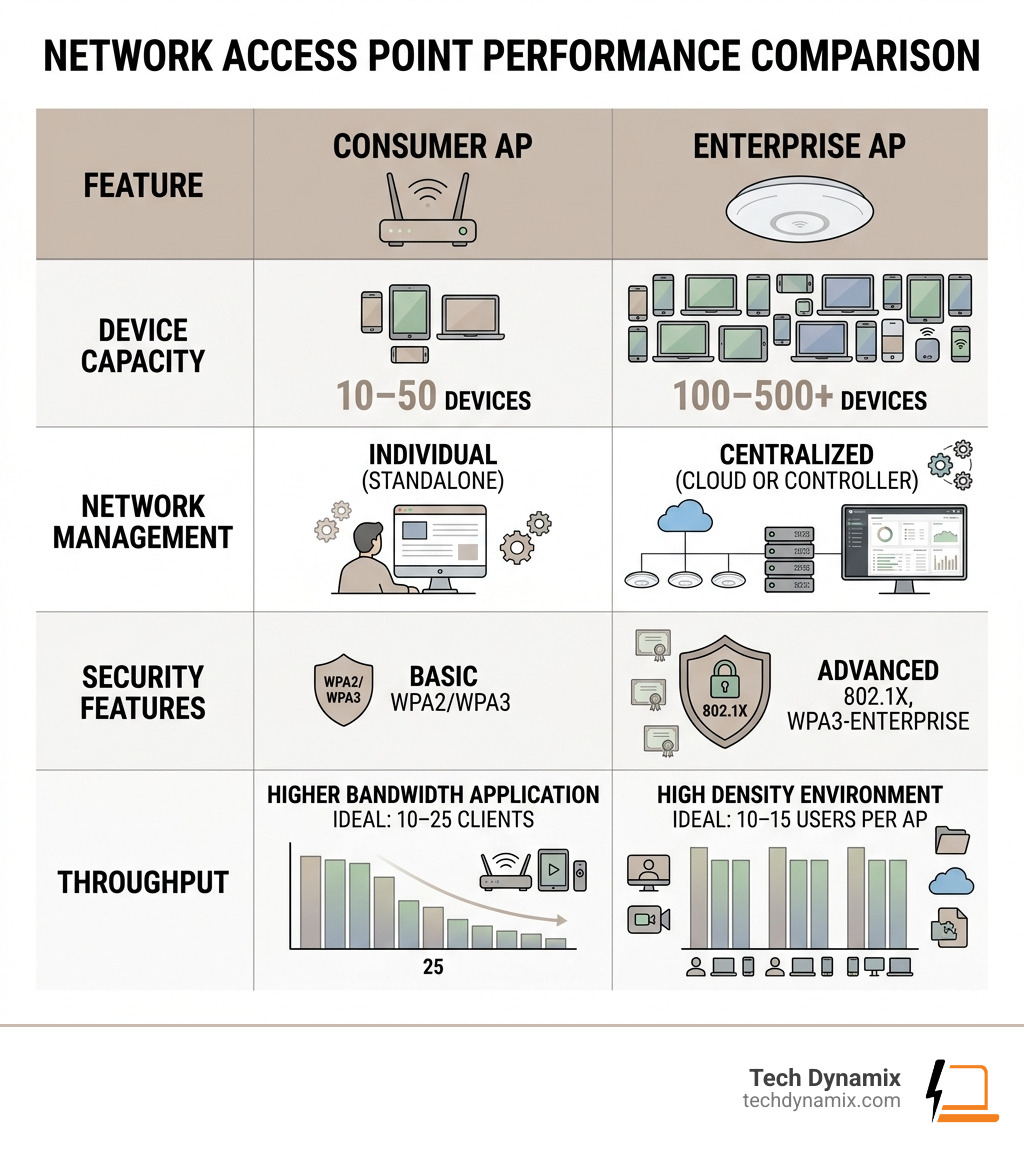
| Feature | Consumer Router/AP | Enterprise Access Point |
|---|---|---|
| Device Capacity | 10–50 devices | 100–500+ devices |
| Management | Individual (Standalone) | Centralized (Cloud or Controller) |
| Security | Basic WPA2/WPA3 | Advanced 802.1X, WPA3-Enterprise |
| Hardware | Integrated Antennas | High-gain, specialized antennas |
By utilizing modern standards like Wi-Fi 6 (802.11ax) and the emerging Wi-Fi 7 (802.11be), enterprise-grade APs can handle hundreds of concurrent users without the “lag” or “freezing” common in cheaper hardware.
Access Point vs. Router vs. Wi-Fi Extender: Which is Best?
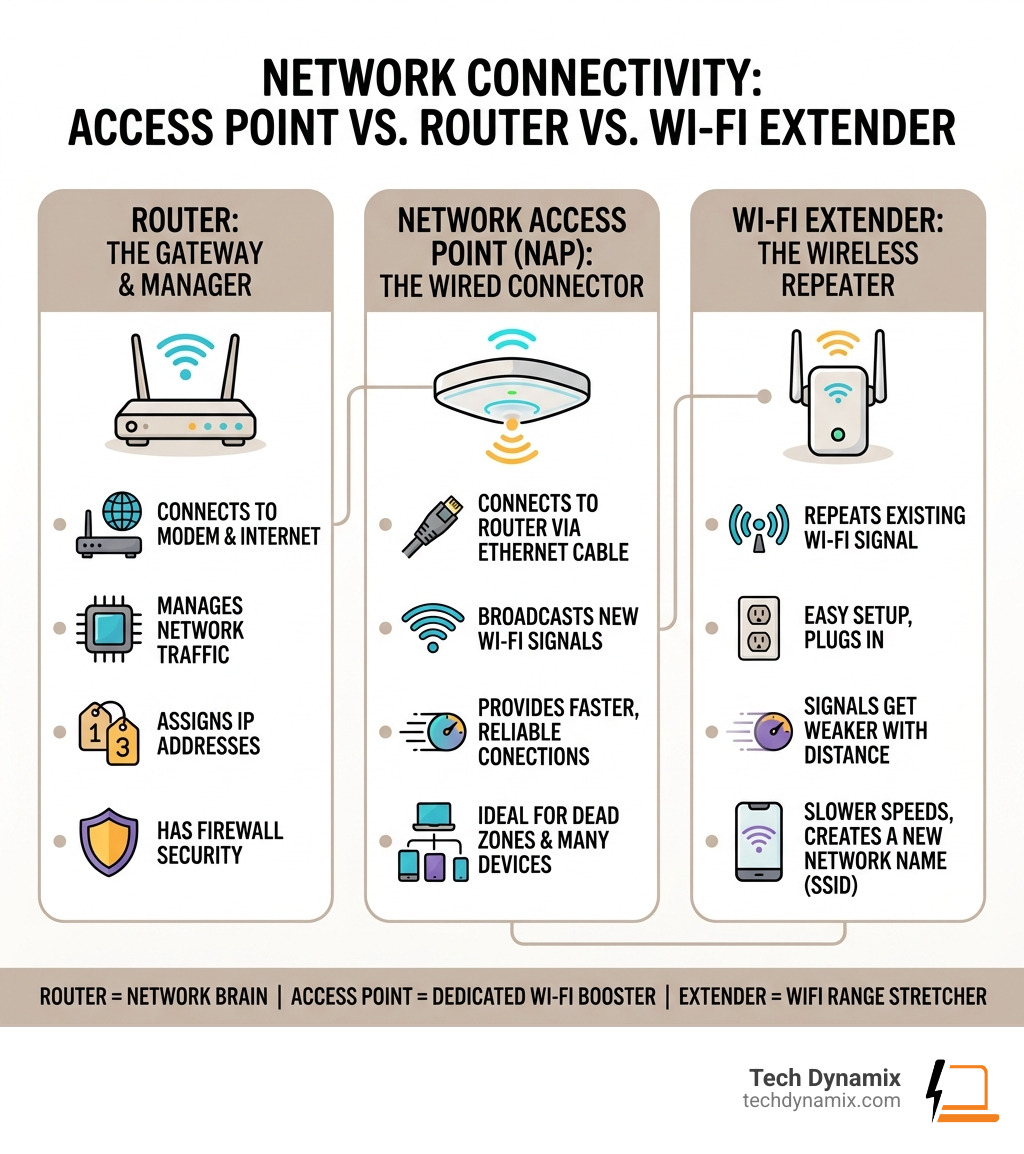
This is the question we get asked most often at Tech Dynamix. The confusion is understandable because a “wireless router” actually contains three different things: a router, a switch, and an access point.
- The Router: This is the “brain.” It manages your IP addresses and connects your local network to the internet. You only ever want one of these active on your network.
- The Access Point: This provides the Wi-Fi. By using dedicated APs, you offload the wireless work from the router, which reduces heat and prevents hardware crashes.
- The Wi-Fi Extender: These are often the “cheap fix,” but they come with a major catch. Most extenders work by repeating the signal, which can halve your effective bandwidth because the device has to use the same radio to talk to the router and the client.
As noted in the Wikipedia entry for wireless access points, a typical 54 Mbit/s wireless connection might only carry 20 to 25 Mbit/s of actual data due to this overhead. When we provide managed network services, we almost always recommend dedicated APs over extenders to avoid this “bandwidth tax” and ensure a stable connection for business-critical tasks.
Future-Proofing with Wi-Fi 7 and Advanced Security
If you are looking at upgrading your network in 2026, you should be looking at Wi-Fi 7 (802.11be). This isn’t just about speed; it’s about “IoT readiness.” With the explosion of smart devices in Northeast Ohio homes and offices—from smart thermostats to industrial sensors—Wi-Fi 7 introduces Multi-Link Operation (MLO), which allows devices to send and receive data across different frequency bands simultaneously.
Security is the other half of the future-proofing equation. Modern network access points support WPA3 encryption, which is far more resistant to “guessing” attacks than the older WPA2. For our business clients, we often implement 802.1X authentication. This ensures that every device connecting to the network must be individually verified, often integrating with Network Access Control (NAC) systems to check if a laptop has the latest security patches before it’s allowed to access the server.
By segmenting your network—creating a “Guest” network that is physically and logically separate from your “Work” network—you can protect your sensitive data while still offering Wi-Fi to visitors.
Installation and Optimization for Northeast Ohio Environments
Living in Northeast Ohio presents some unique challenges for Wi-Fi. Many of our older buildings in places like Willoughby and Cleveland Heights feature thick plaster walls or even “lathe and plaster” with metal mesh. These are absolute Wi-Fi killers.
When we consult on Ohio managed IT and network security, we follow these best practices for AP installation:
- Central Placement: Don’t tuck your AP in a corner or a closet. Place it centrally and as high as possible.
- Channel Selection: Wi-Fi signals can interfere with each other. We use specialized tools to see which channels your neighbors are using and move your network to the “quietest” lane.
- Firmware Updates: Security threats evolve. We recommend regular updates to ensure your hardware stays protected against the latest vulnerabilities.
- Coverage Overlap: If you use multiple APs, you want about 15-20% overlap in their signals. This allows for “seamless roaming,” where your phone switches from one AP to the next as you walk through the house without dropping your Zoom call.
For businesses that can’t afford a second of downtime, our Network Operations Center (NOC) monitors these access points 24/7, catching interference or hardware failures before the staff even notices a slowdown.
Frequently Asked Questions about Access Points
How many devices can one access point support?
While a consumer-grade AP might claim to support 50 devices, performance often degrades after 10-15 active users. Enterprise-grade access points are designed with more powerful processors and can handle 100 to 500+ devices simultaneously. However, “support” and “performance” are different—high-density planning is required if everyone is trying to stream 4K video at once.
What is the typical range of a wireless access point?
Most indoor APs have a range of 100 to 300 feet. However, this is heavily affected by physical barriers. A single brick wall can cut that range in half. Outdoor models, which are built to be weatherproof, can reach several hundred meters if there is a clear “line-of-sight” between the AP and the device.
Can I power an access point without a wall outlet?
Absolutely. Most modern, professional-grade APs use Power over Ethernet (PoE). By using a PoE-capable switch or a small device called a “PoE injector,” you can send power over the same Ethernet cable that carries the data. This makes installation much cleaner and allows you to place APs in the best possible locations for signal, rather than just where there’s a plug.
Conclusion
Wi-Fi is no longer a luxury—it’s a utility as essential as electricity or water. Relying on a single, overworked router to cover your entire home or office is a recipe for frustration. By switching to a dedicated network access point strategy, you gain the scalability, reliability, and security that modern digital life demands.
At Tech Dynamix, we specialize in taking the guesswork out of networking. Whether you’re a small business in Mentor or a growing healthcare facility in Highland Heights, we can design a wireless environment that actually works. If you’re ready to stop rebooting your router and start enjoying a seamless connection, explore our network design management services today. We’ve spent two decades perfecting the art of connectivity in Northeast Ohio, and we’re ready to help you build a network that’s ready for whatever the future brings.